
How to Connect the IBKR Flex Query API
Create an Activity Flex Query and enter its Flex Web Token and Query ID to automatically sync your IBKR account data.
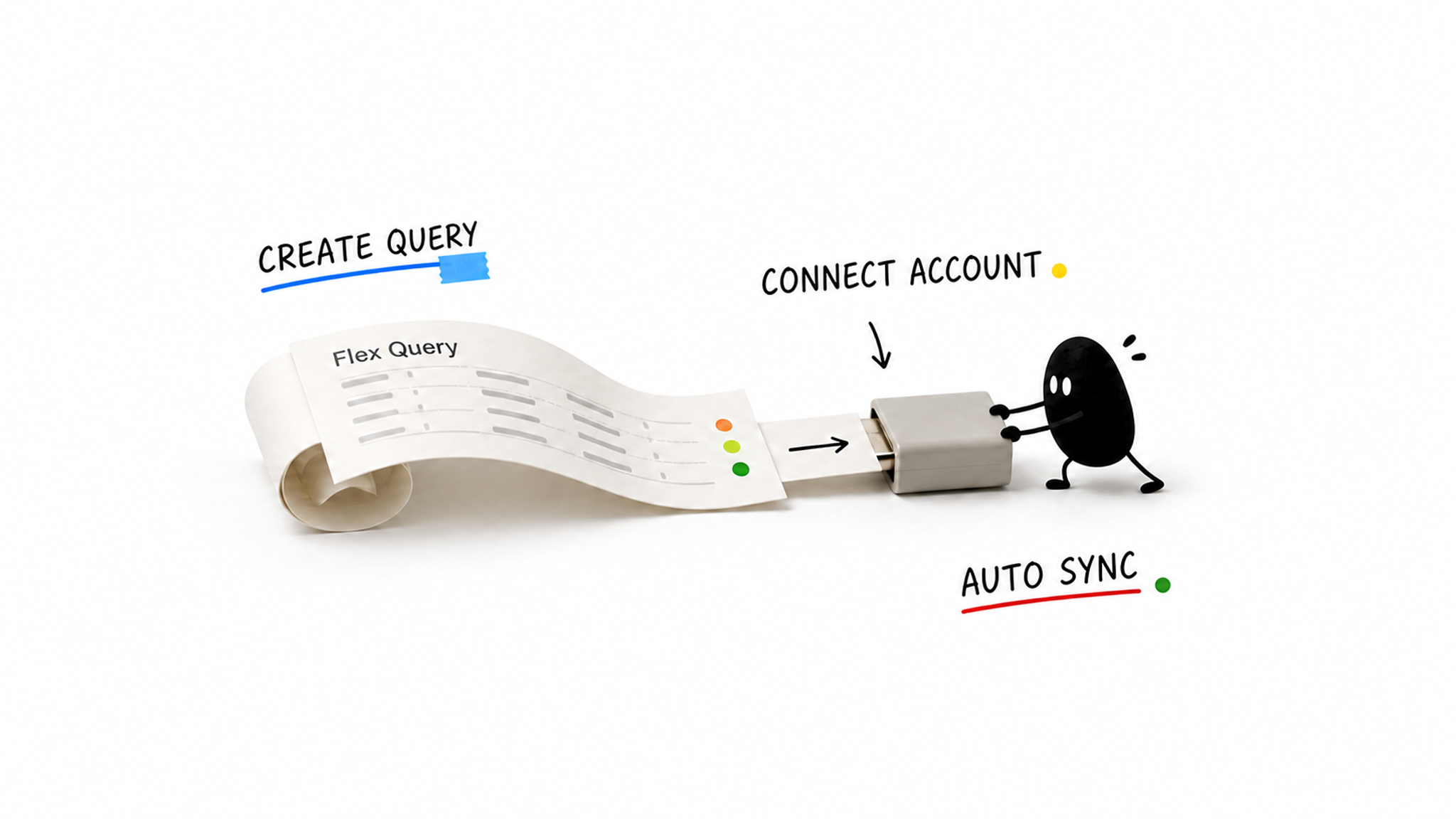
Create an Activity Flex Query and enter its Flex Web Token and Query ID to automatically sync account assets, positions, trades, and cash activity.
Your Flex Token is a sensitive credential. Do not share it or commit it to a code repository. The token is encrypted on the server and only a masked value is shown on the page.
Step 1: Create an Activity Flex Query
Sign in to the IBKR Client Portal, then open Performance & Reports -> Flex Queries.
Use Configure with AI (Recommended)
IBKR can generate a Flex Query from a natural-language prompt. Select Configure with AI and paste:
Create an Activity Flex Query in XML format for syncing account cash,
cash transactions, daily NAV, open positions, trades, and transfers.
Include the account, currency, report date, position, option contract,
P/L, commission, cash flow, and FX-to-base fields needed for each section.
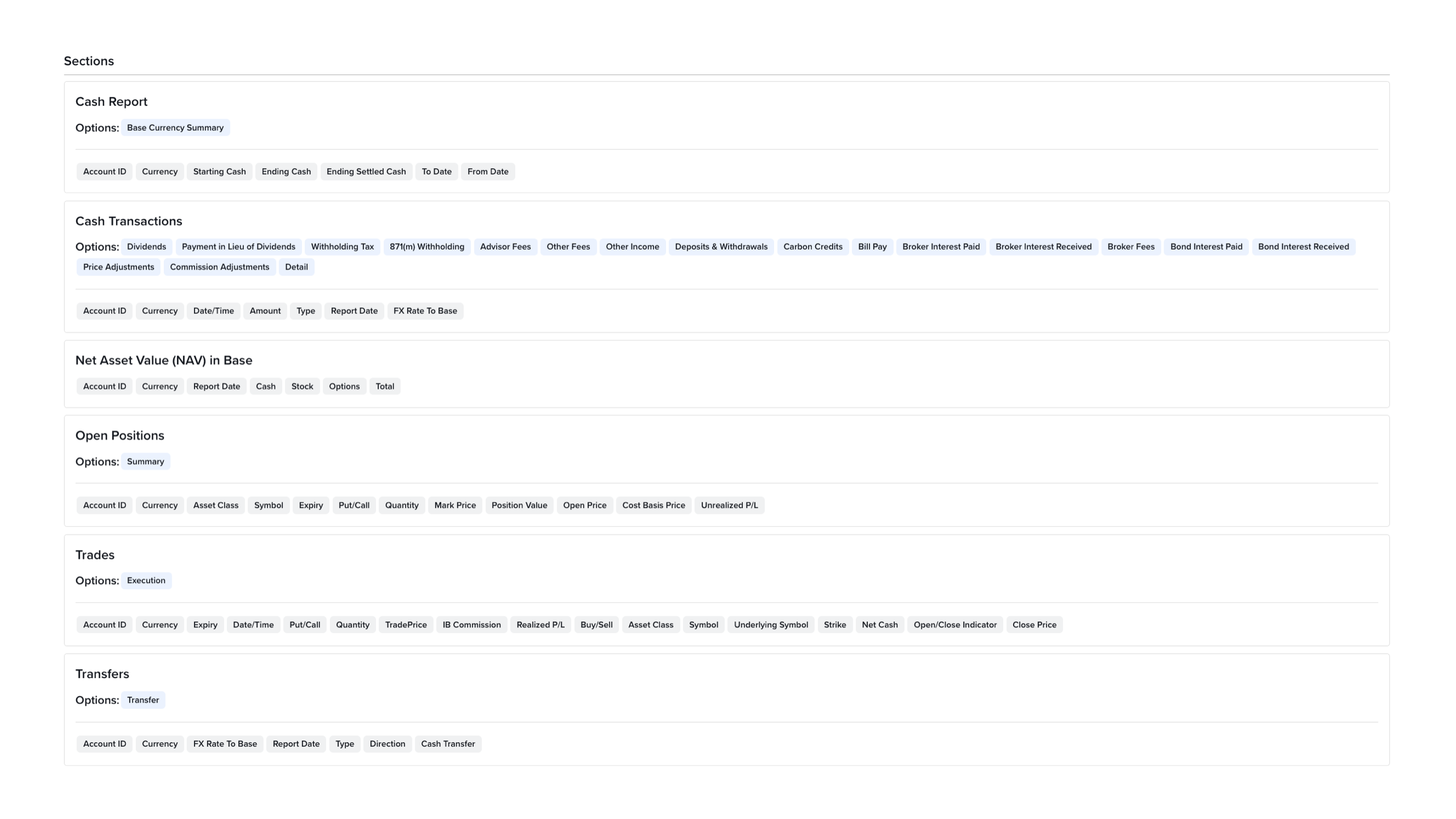
After generation, compare the Sections and Fields with the table below. Add any missing fields before saving, as the AI-generated result may be incomplete.
Configure It Manually
If Configure with AI is not available for your account:
- Select the plus button under Activity Flex Query.
- Enter a name such as
Smarterwheel Sync. - Add the following six Sections and select the listed Fields.
| Section | Fields |
|---|---|
| Cash Report | Account ID, Currency, Starting Cash, Ending Cash, Ending Settled Cash, To Date, From Date |
| Cash Transactions | Account ID, Currency, Date/Time, Amount, Type, Report Date, FX Rate To Base |
| Net Asset Value (NAV) in Base | Account ID, Currency, Report Date, Cash, Stock, Options, Total |
| Open Positions | Account ID, Currency, Asset Class, Symbol, Expiry, Put/Call, Quantity, Mark Price, Position Value, Open Price, Cost Basis Price, Unrealized P/L |
| Trades | Account ID, Currency, Expiry, Date/Time, Put/Call, Quantity, TradePrice, IB Commission, Realized P/L, Buy/Sell, Asset Class, Symbol, Underlying Symbol, Strike, Net Cash, Open/Close Indicator, Close Price |
| Transfers | Account ID, Currency, FX Rate To Base, Report Date, Type, Direction, Cash Transfer |
When finished, your Sections should match this example:
Under General Configuration, set Format to XML. For the first sync, use the most recent 365 days. If the query is too large, start with the most recent 30 days instead.
Save the Query, return to the Flex Queries list, and note its numeric Query ID. The Query name is not the Query ID.
Step 2: Generate a Flex Web Token
- Open Settings in the Client Portal.
- Go to Account Reporting -> Flex Web Service.
- Enable the service, choose an expiration date, and generate a Token.
- Save the Flex Web Token immediately.
The complete Token may only be displayed once. If it is lost or expires, generate a new one in IBKR.
Step 3: Connect and Sync
Return to this site:
- Open the account menu and select Broker Connection.
- Select Configure IBKR.
- Enter the
Flex Web Tokenand numericQuery ID. - Select Save Config, then Sync Now.
After a successful sync, the site displays your account overview, current positions, trade history, and performance calendar.
Troubleshooting
Invalid Token or Query ID
Make sure you are using a Flex Web Service Token rather than your IBKR password. Also check that the Token is active, has not expired, and contains no extra spaces.
Missing Position or Asset Data
Confirm that the Query contains all six Sections and their required Fields, save it, and run the sync again.
Deposits Appear as Profit
Check Amount, Type, Report Date, and FX Rate To Base under Cash Transactions, plus Direction and Cash Transfer under Transfers.
First Sync Times Out
Shorten the Query period to the most recent 30 days, wait a few minutes, and try again. Once it succeeds, gradually increase the period.